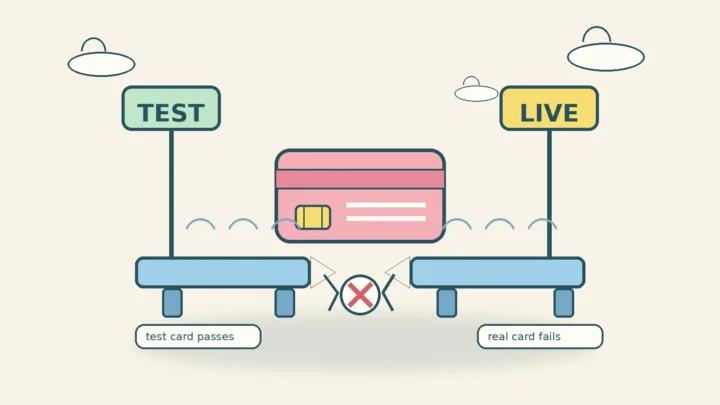
Your checkout is in stripe live mode, the domain is public, and the first real customer payment still fails.
The test card worked yesterday. The dashboard toggle is set to live. Yet the customer sees a decline, the payment never appears in live-mode payments, or Stripe reports that an object only exists in test mode. The launch looks finished, but the payment chain is not.
Stripe live mode is on, but the app is not really live
Stripe does not treat test and live as two views of one database. They are separate environments with separate keys, customers, products, prices, payment methods and webhook endpoints. The dashboard toggle changes what you are looking at. It does not rewrite the deployed application.
Your app chooses the environment with every request. A server using sk_test_... makes a test request even on a public domain. A server using sk_live_... still fails when it sends a price or customer ID created in a sandbox. Preview only proves that checkout renders.
What you usually see when live payments fail
- No such price or No such product: the object exists only in test mode.
- A similar object exists in test mode: the app mixed a live key with a test object ID.
- Authentication error: the secret key is missing, expired, restricted or copied incompletely.
- Payment method unavailable: the method is not enabled for live mode or activation is incomplete.
- Webhook signature verification failed: the endpoint uses the wrong signing secret.
- Card declined: Stripe reached the issuer; this can be a real card outcome, not an integration bug.
Do not debug all six at once. Find the first failed request in live mode and fix that layer first.
Why the AI built it this way
AI builders are good at producing the happy path. They copy sample keys, sample price IDs and a sample webhook handler into the project. In preview those pieces agree because everything points at test data.
Production breaks the agreement. The host may still contain test keys, a serverless function may read an old variable, the database may store a test price ID, and the webhook may exist only under test data. One layer is enough to break the chain.
The fix is not another broad prompt. It is a mode audit with exact evidence.
Step 1: read the live-mode failure in Stripe
- Open Stripe Workbench or the request logs in the Dashboard.
- Switch the dashboard view to live mode.
- Reproduce the payment once in an incognito window.
- Open the newest failed request, not the frontend error message.
- Copy the error type, object type and object ID.
- Check whether the request used a live key or a test key.
If no request appears in live mode, look in test mode. If it appears there, production is still configured like the test environment — the same root cause covered in stripe test mode.
Step 2: verify account activation and payment methods
Live keys alone do not guarantee acceptance. Complete Stripe activation: business details, verification, bank account, tax information where required, and the payment methods you plan to offer. Then enable only the live payment methods checkout and fulfillment actually support.
Step 3: replace every key pair deliberately
Check the production host, not only the local .env file:
- frontend publishable key:
pk_live_... - backend secret or restricted key:
sk_live_...orrk_live_... - no leftover
pk_test_...in the deployed JavaScript - no leftover
sk_test_...in server env, serverless functions or secret stores
Copy the complete secret key with the provider’s copy flow; a masked dashboard value is not the key. Rotate any exposed secret. Never put it into a public VITE_ or NEXT_PUBLIC_ variable. After changing variables, redeploy or restart.
Step 4: recreate the missing live objects
Products, prices, coupons, customers and subscriptions from test mode do not become live objects. Recreate what you need in live mode, then update the IDs your application reads: environment variables, database rows or checkout configuration.
This is where many AI-built apps fail quietly: the key is live, but the price ID still belongs to test mode. Stripe names the missing object. Treat that object ID as the fix target, not as a reason to regenerate the whole checkout.
Step 5: register and prove the live webhook
Payment success is not fulfillment. Test and live webhook endpoints are separate, and each endpoint has its own signing secret.
- Open webhook settings in live mode.
- Add the production endpoint URL.
- Select only the events your app needs.
- Copy that endpoint’s signing secret into the production server environment.
- Complete one controlled checkout flow.
- Confirm that the endpoint returns success and that the app writes the order, entitlement or credit exactly once.
If the customer pays but the app never unlocks anything, continue with stripe webhook. That failure is downstream of live mode, not proof that live mode itself is off.
Step 6: run one controlled real checkout
Only after keys, objects, activation and webhook align should you retry checkout. Make the smallest reasonable purchase with a payment method you control. Confirm browser success, the live payment and one webhook write; then refund or cancel normally.
Stripe live mode checklist before customers retry
- First failed request identified in live-mode logs
- Stripe account activation complete
- Required payment methods enabled in live mode
- Production publishable key starts with
pk_live_ - Production backend key starts with
sk_live_orrk_live_ - No test key remains in frontend, backend, serverless env or secret store
- Products, prices and coupons verified in live mode
- Live webhook registered with the live signing secret
- Webhook handling is idempotent
- One real checkout reaches payment, webhook and fulfillment
Live mode is not a switch on the dashboard. It is a chain: live keys, live objects, live account state, live webhook and a production build that actually uses them.
If the chain keeps breaking because the app grew beyond the AI preview, use the production baseline in lovable deploy before asking the builder for another payment rewrite.
FAQ
Why does Stripe live mode still reject real payments?
Stripe live mode only means the account can process live objects. Payments still fail if the deployed app uses test keys, references test products or prices, misses account activation, or sends webhooks to a test endpoint.
Does the Stripe dashboard toggle put my app into live mode?
No. The dashboard toggle changes which Stripe data you are viewing. Your application chooses live or test behavior through the API keys and object IDs in its production configuration.
What is the first thing to check when Stripe live mode fails?
Open the live-mode request logs in Stripe Workbench and inspect the first failed API request. The exact error usually separates a key problem, missing live object, inactive payment method, webhook failure or real card decline.