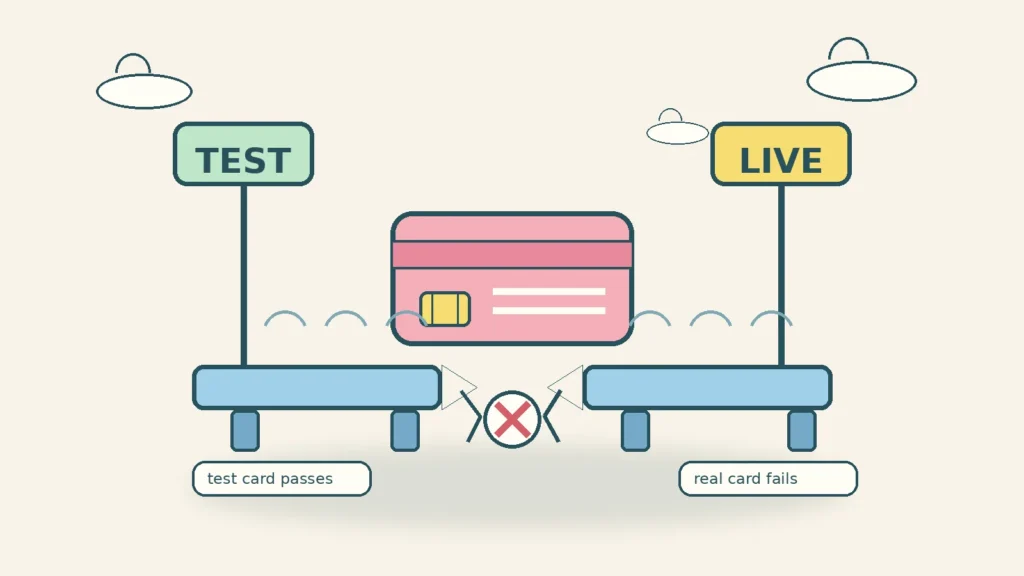
The preview takes the test card, the success page appears — then the published app rejects real customers or charges them without unlocking anything. Lovable payment gateway production errors look like one bug, but they are two payment setups wearing the same symptom.
Lovable payment gateway production errors: identify the setup first
Open More → Payments before changing anything. There are two possibilities:
- Built-in payments — Lovable provisioned Stripe or Paddle. You see test/live data and a go-live checklist.
- Self-managed Stripe — the view carries a Self-managed Stripe badge. You connected your own Stripe account with an
rk_orsk_key.
Built-in payments have separate test and live environments. Self-managed Stripe has one environment at a time, controlled by the stored key. Do not disconnect payments to “reset” the problem, and never paste a key into chat; keys belong only in the Connect Stripe or Update Stripe secret key form.
Why the AI leaves you at this step
The builder optimizes for the visible success path: button, test payment, success page. Production adds the parts it does not naturally verify — onboarding, live price IDs, webhooks and entitlement matching. That is why the app can look finished while payments are not live.
Fix path 1: built-in Stripe or Paddle
- Open the go-live checklist. Until every step is complete, live checkout does not work — even if preview checkout is perfect.
- Stripe: claim the account. Use the link in the Payments tab, then finish Stripe onboarding in the Stripe dashboard. Stripe prompts you to copy products, prices and the Lovable app into the live account; that connects live keys and webhooks.
- Paddle: pass review. Run the readiness check, complete seller verification and pass domain review. Privacy policy, terms, refund policy and real site content are part of the check.
- Publish after the checklist. Products and prices created through Lovable sync from test to live during publish. If you changed the catalog without publishing, live still has the old one.
- Manage products through Lovable. Direct edits in the provider dashboard can create ID mismatches. Discounts are the exception: they do not sync, so create live discounts explicitly in live mode.
If the Payments tab says The live API key is invalid or The sandbox API key is invalid, the credentials Lovable holds stopped working on the provider side. The documented path is Lovable support — not disconnecting the integration.
Fix path 2: self-managed Stripe
- Check the key mode. Test keys start
rk_test_orsk_test_; live keys startrk_live_orsk_live_. You cannot tell the mode from the checkout UI. - Update through the form. Ask Lovable to update the Stripe key and submit the live key only in the Update Stripe secret key form. Never use chat, client code or a
VITE_variable. - Switch to live price IDs. Price IDs differ by mode. Copy each price with Stripe test mode off and ask Lovable to use those IDs.
- Read No such price literally. It usually means key and price belong to different modes — not that the button or product UI is broken.
- Respect the preview risk. Self-managed Stripe has no separate preview test environment. With a live key stored, a preview purchase can charge a real card.
- Check the email match. Subscriptions are matched by email address. The Stripe customer email must match the email the buyer uses to sign in to your app.
- Test the customer portal in a real tab. It does not work reliably inside the embedded preview panel.
If the exact symptom is “test card works, real card fails,” compare the broader stripe test mode guide. The dangerous version here is mixed mode: test key plus live price, live key plus test price, or a successful charge with no entitlement logic behind it.
If the card succeeds but nothing unlocks
That is no longer a checkout problem. It is event delivery or customer matching.
Built-in payments register two webhook endpoints per environment. One belongs to your app and ends in ?env=sandbox or ?env=live; the other is Lovable’s monitoring endpoint. They look like duplicates but are not interchangeable. Deleting the app endpoint means customers can pay while subscriptions never activate.
If deliveries fail with Invalid webhook signature, confirm the webhook handler still exists and no self-created duplicate points at the same URL. If the whole environment fails, ask Lovable to rotate that environment’s webhook secret, then publish again immediately. Missed events are not redelivered; reconcile those orders manually.
Self-managed Stripe normally checks subscription state directly with Stripe. If you added custom webhooks for fulfillment, the normal Stripe rules apply: right endpoint, right events, raw body, correct signing secret. The stripe webhook and stripe webhook secret guides cover that failure class.
The error-to-cause map
- Test card works, real card fails — go-live incomplete, or self-managed Stripe still uses a test key.
- No such price — key mode and price ID mode do not match.
- Charge succeeds, access never unlocks — webhook endpoint deleted, invalid signature, or buyer email mismatch.
- Catalog wrong on live — project not published after the change, or products edited directly in the provider dashboard.
- Portal looks broken in preview — open it in a standalone browser tab.
- Live API key invalid — provider credentials were deleted or rotated; contact Lovable support.
Production checklist
- Built-in or Self-managed Stripe identified in More → Payments
- No key in chat, client code, or a
VITE_variable - Built-in go-live checklist green; latest catalog published
- Live key and live price IDs in the same Stripe mode
- App webhook endpoints intact; buyer email matches app sign-in email
- One small real purchase only after the mode is known
Most lovable payment gateway production errors are environment bugs: test and live were never deliberately separated, or the app never received the event that says the payment happened.
Finish the remaining launch checks with the lovable deploy checklist.
FAQ
Why does the Lovable payment gateway work in preview but fail in production?
Preview and production are not the same payment environment. Built-in payments use test mode in preview and only process real cards after the go-live checklist is complete and the project is published. With your own Stripe account, one key controls everything, so a test key keeps the published app in test mode.
What does No such price mean on a published Lovable app?
The checkout is sending a price ID from the other Stripe mode. Price IDs differ between test and live. If the stored key is live, copy the price IDs with test mode off in Stripe and ask Lovable to switch the app to those IDs.
The customer paid, but the app never unlocked access. What broke?
On built-in payments, payment events reach the app through Lovable-registered webhook endpoints. Deleting or duplicating the app’s endpoint can leave the charge successful while access never activates. On self-managed Stripe, subscription access is usually checked directly by email; a different buyer email or sign-in email can produce the same symptom.